
Velloo documentation
Markdown for LLMs ↗The Agent tab
Run your own coding agent, Codex, Claude Code or any Agent Client Protocol agent, in the canvas beside the design, with your own login, settings and approvals.
The Agent tab runs your own coding agent beside the design, in the canvas’s right panel. It is the same agent you use in a terminal: your login, your settings, your MCP servers, your permission rules. Velloo adds one thing to it, its MCP server for the design that is open, so every design edit renders on the canvas as the agent makes it.
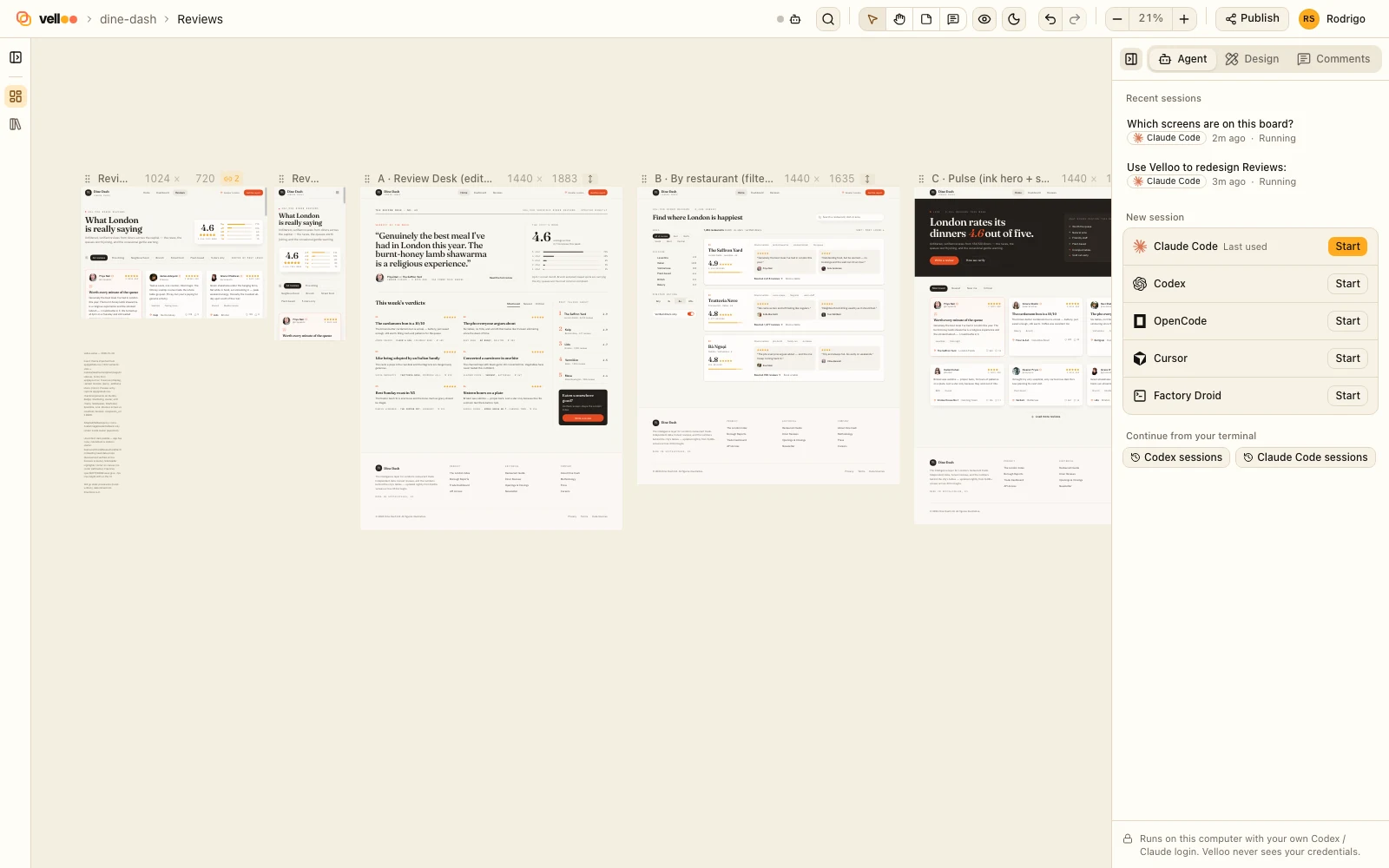
The right panel opens on Agent, beside Design (the Node and Theme tabs) and Comments. In a window too narrow for both side panes, the right one is the one kept.
Your first session can start before you open the canvas: the last step of velloo init’s setup page picks an agent and its first task, and the canvas opens on this tab with the agent already working.
What you need
| Agent | Install | Sign in |
|---|---|---|
| Claude Code | curl -fsSL https://claude.ai/install.sh | bash or npm install -g @anthropic-ai/claude-code |
run claude and sign in |
| Codex | npm install -g @openai/codex or brew install codex |
codex login |
Other CLI agents that speak the Agent Client Protocol appear once they’re installed and answer Velloo’s handshake: OpenCode, GitHub Copilot, Cursor, Gemini CLI, Qwen Code, Kimi CLI, Mistral Vibe, Cline, Kilo, Auggie, Factory Droid and Goose. They sign in their own way, and a session that needs it says how.
Claude Code and Codex are always listed, Claude Code first until you have used one, with their state and the command that fixes it: Ready, Not installed, Not signed in, Needs an update or Unavailable. Check again re-reads them after you install, sign in or update.
No configuration is needed. You don’t need to run velloo connect for the Agent tab: each session is given this design’s MCP server.
Local, not cloud
Everything runs on this computer. The Velloo daemon for this design starts the agent in your app’s folder, and the agent talks to its own provider with your own account and subscription. Velloo holds no provider credentials, pays for no inference, and sends nothing about your sessions to Velloo cloud.
What the agent is given
- Its working directory: the app this design belongs to, so the agent that edits the design can also implement it.
- Velloo’s MCP server for this exact design, added to the agent’s own servers.
- A short instruction that it is in the canvas beside this design, and should read and change the design only through Velloo’s tools.
- Where you are. Each message carries the open board, shown above the box as a Viewing card, so “this board” means the one on screen and a screen the agent makes goes on it. Only the board: frames and nodes go when you add them.
- What you attach. Select something on the canvas and a + card for it appears above the box: press it to add that node, or the whole frame when its screen is selected. The frames button beside the box lists the board’s frames and notes, to add or take off. Nothing else from the design or your machine is attached.
Enter sends and Shift+Enter starts a new line. While the agent works, the bottom of the conversation says what it’s doing now: thinking, running a command, editing a file or the design. A message sent while it works is queued, or added to the running turn when the agent supports that.
Permissions and approvals
Velloo never approves anything on its own, and the page can’t choose the agent’s folder, executable, environment or sandbox.
A session starts in your own permission mode. The shield button beside the box shows it and switches it for that session, as the agent’s own mode switch would. Modes that turn every check off (Claude Code’s “bypass permissions”, Codex’s full access, an ACP agent’s “yolo”) are never offered there; they stay a choice made in the agent itself.
When the agent asks, the request appears above the box with exactly the choices that agent supports:
- Allow once (Enter).
- Allow for this session (⌘/Ctrl+Enter) stops asking until the session ends.
- Always allow is the agent’s own “don’t ask again”, and the button says what it saves and where: for Claude Code, the rule it proposed in the settings file it named; for Codex, the command prefix in your Codex rules. Undo it where it was saved.
- Deny (Esc), and Deny and stop.
Comments
- While the tab is open or a session is running, a comment you write on the canvas goes to the box as a card instead of opening a thread.
- Local comments: Add to agent on a comment, or Add N open comments to agent in the Comments tab, puts them in the box as cards. The agent replies on each thread and leaves resolving it to you.
- Cloud comments: when new reviewer comments arrive on a published board, the canvas says so without taking focus. Add to agent puts them in the box; nothing is sent until you press Send.
Slash commands
Type / at the start of the box:
/modellists the models the session can use. The model is also in the session header./mcplists the agent’s MCP servers as it sees them, with the one for this design marked. With Claude Code you can reconnect a server or switch one off for the session.- The agent’s own commands follow: Claude Code’s skills and custom commands, an ACP agent’s advertised commands. Codex’s slash commands exist only in its terminal interface.
Sessions
- Sessions belong to the design. The back arrow returns to the agents and this design’s recent sessions; + starts another session with the same agent.
- Closing the browser tab doesn’t stop a turn: an agent at work keeps the canvas running until it finishes. Once no agent is working and no canvas is open, the canvas stops after five minutes, and its sessions stop with it, as with
velloo stop. Stop agent ends one yourself, and Reopen continues the conversation from the agent’s own record of it, also after the canvas restarts. - Copy resume command gives you
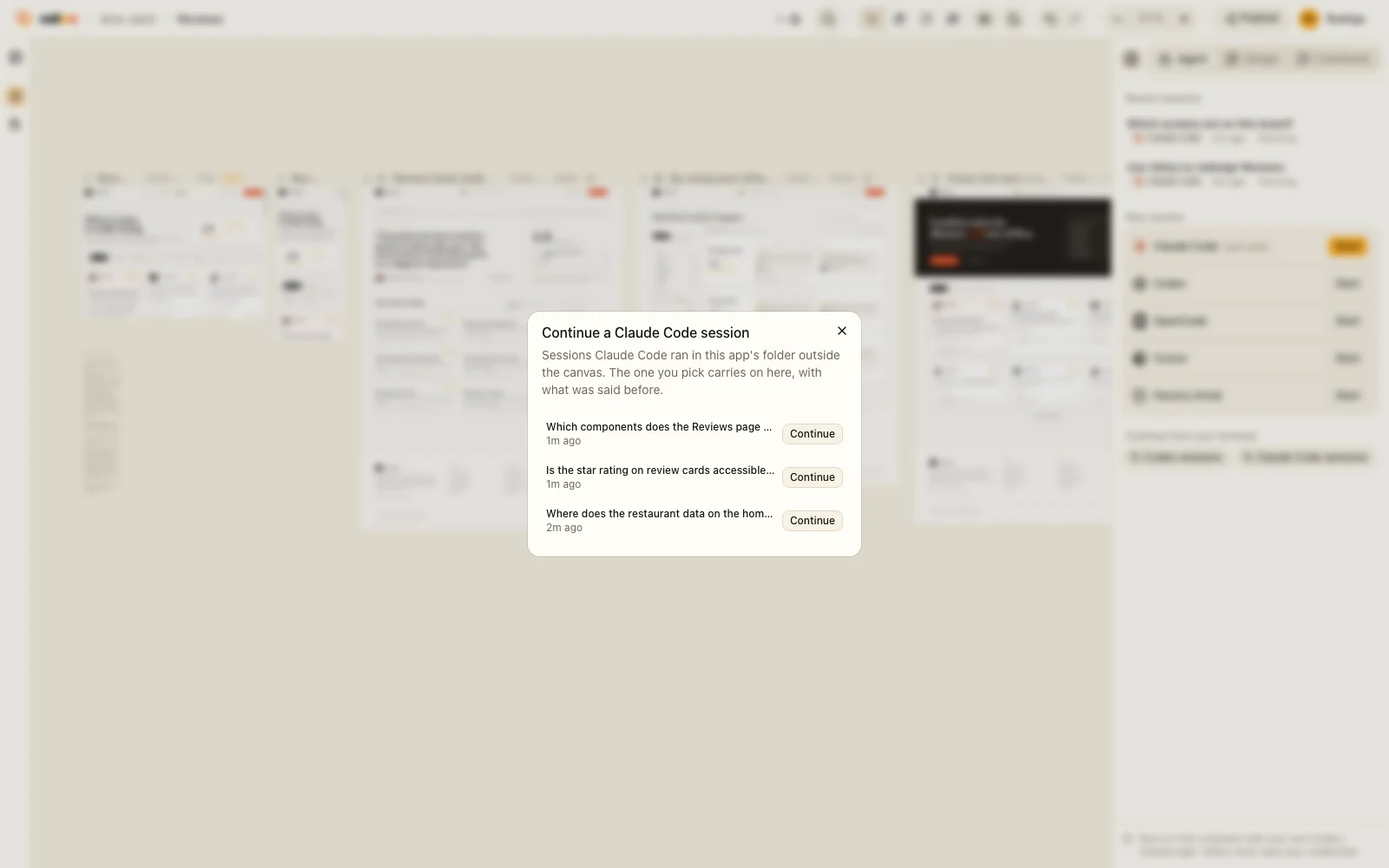
claude --resume <id>orcodex resume <id>with the folder, to carry on in a terminal. - Continue from your terminal, under the agents, goes the other way: pick a session Codex or Claude Code ran in a terminal and it carries on in the tab, with what was said before. Only sessions started in your app’s own folder show up.
- Velloo keeps a readable copy of each conversation in
~/.velloo/agents/<design>/, outside your repository. Delete session removes it; the agent’s own record is the agent’s to manage.
Troubleshooting
| What you see | What to do |
|---|---|
| Not signed in | Run codex login, or claude and sign in, in a terminal, then Check again. |
| Needs an update | Update the CLI (npm install -g @openai/codex@latest, brew upgrade codex, or claude update). |
| Not installed, but it runs in your terminal | Velloo looks on its own PATH plus ~/.local/bin, ~/.bun/bin, ~/.npm-global/bin, ~/.claude/local, /opt/homebrew/bin and /usr/local/bin. Start Velloo from a shell where the CLI is on PATH. |
| “The Velloo MCP server didn’t start” in a turn | Design edits won’t reach the canvas in that session. Check velloo status. |
| A session stopped unexpectedly | The message is the agent’s own last words. Reopen to continue. |
To drive Velloo from an agent in your terminal instead, see Connect an agent.