
Velloo documentation
Markdown for LLMs ↗Introduction
Velloo is a local-first canvas for creating and evolving the visual parts of products with an AI coding agent.
Velloo gives you and your agent a shared, reviewable place to shape how a product looks and feels. Start with an idea, an existing interface, or something in between; design with real components, see the result, iterate together, and carry the work into the product. You keep the goals, taste, and decisions.
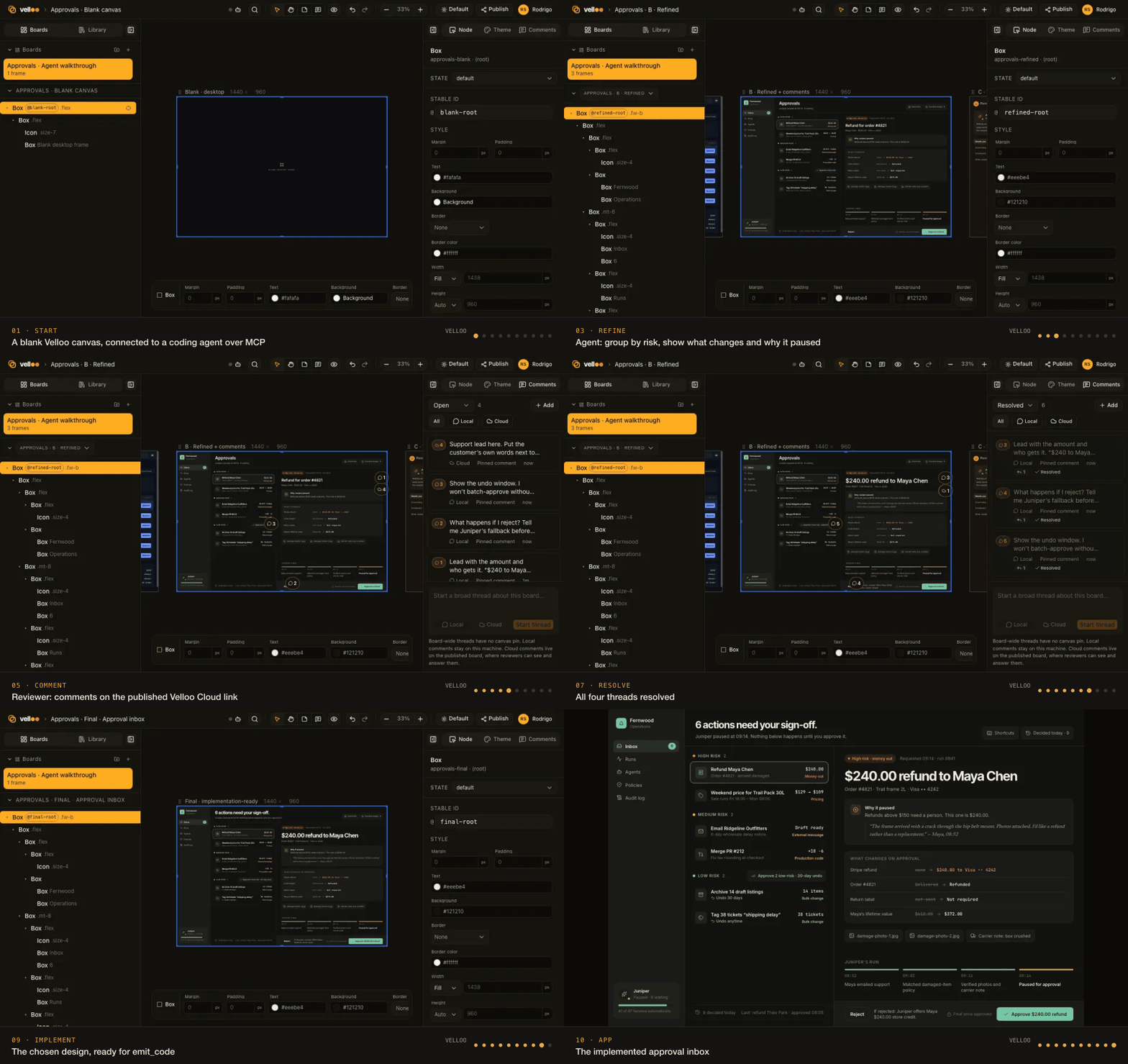
A flexible workflow
- Design with the agent. Begin with a new product idea, a fresh screen, or an interface you want to evolve.
- See, decide, and iterate. Review the rendered UI, steer the agent, annotate specific parts, and explore further when it helps.
- Implement in the product. Carry the work into the host app using its components, conventions, and application logic.
When you are evolving an existing interface, add a calibration step: capture or recreate the current experience first, then compare changes at the same viewport. That is useful for redesigns, not a requirement for creating something new.
Velloo designs are deliberately static. They describe interface structure and states; routing, data, handlers, and business logic belong in the app. Because Velloo designs with the product’s real components, the gap between design and implementation is smaller.
A simple mental model
Pageparent nodeNavigationchildMainchild + parentHeadingchildFormchildButtonselected nodeIndentation shows which components live inside other components. Together they form one reusable tree.
Frames show a screen at useful sizes or in context. A board arranges those frames for review.
A component tree describes what contains what: a page can contain navigation and a main area; that main area can contain a heading, form, and button. Each component is a node. Together those nested nodes make a reusable screen. A frame shows that screen at a particular size or in a particular context, and a board arranges frames for review. When several frames use the same screen, one edit updates all of them.
A design is a local folder of JSON, inside your app repository or elsewhere. A repo-level velloo.json can list several in-repo designs; Velloo associates external designs with the checkout only on your machine. Read Core concepts or The design folder when you need the detail.
Native to the app
Each design folder targets the provider and styling idiom it will eventually ship with:
- shadcn/ui with Tailwind classes
- Material UI v6 with
sx - Ant Design v5
- Chakra UI v2
- a no-library primitive set with Tailwind or inline styles
The canvas renders provider components and code emission preserves that idiom. See Framework-native design.
The provider is not the whole catalogue. Your app’s own components — from a package it depends on, like Mantine or a private design system, or from its own components/ directory — are discovered from what the app renders, drawn on the canvas from its own installed copy, and emitted with their exact imports. A library with no adapter is still a library Velloo renders. See Repository components.
Fidelity is reported, not assumed. Each component is checked, and one that rendered without its provider or its stylesheet is named as such rather than quietly approximated and called exact.
Local first, cloud when people need a link
The solo loop is local and account-free. The design stays on your machine, the canvas daemon runs there, and your agent reaches it over MCP. Keep the design in the repo or elsewhere; Git is optional.
Velloo Cloud is the optional collaboration layer: published board links, access controls, comments that sync back to the canvas, teams, and hosted image or SVG generation. It is not required to design or implement a screen. See the cloud boundary.